Waitlist System
Get notified when your preferred tee time becomes available.
Last updated: 2026-01-26 Where to find it: Any fully-booked tee time slot Who can use it: All players Prerequisites: DigiWedge account Help link: /booking/waitlist
Overview
A slot-level waitlist system with timed offers, cascade logic, and automated notifications for managing oversubscribed tee times.
Features
Core Waitlist
- Per-slot queues: Each tee time slot maintains its own waitlist
- Priority ordering: First-come-first-served with optional priority tiers
- Queue size limits: Configurable max waitlist size per course
- Auto-cleanup: Expired entries automatically removed
Slot Offers
- Timed offers: When a slot becomes available, offer is sent to first in queue
- Offer duration: Configurable time to accept (default: 15 minutes)
- Cascade logic: If declined or expired, automatically offer to next player
- Notification limits: Max offers before slot goes public
Waitlist Settings (Per-Course)
- Queue size limits
- Offer duration
- Auto-cascade toggle
- Auto-expiry rules
- Notification channel preferences
Data Model
WaitlistEntry
├── id, tenantId
├── slotId (references TeeTimeSlot)
├── playerId
├── priority
├── status (WAITING, OFFERED, ACCEPTED, EXPIRED, CANCELLED)
├── position
├── requestedAt
├── expiresAt
└── notes

WaitlistOffer
├── id, waitlistEntryId
├── offeredAt
├── expiresAt
├── status (PENDING, ACCEPTED, DECLINED, EXPIRED)
├── respondedAt
└── cascadedToId (next entry if declined)

WaitlistSettings (per-course)
├── courseId
├── maxQueueSize
├── offerDurationMinutes
├── maxOffersBeforePublic
├── autoCascadeEnabled
├── autoExpiryDays
└── notificationChannels (EMAIL, SMS, PUSH)
Notification Flow
1. Slot becomes available (cancellation, no-show, block removal)
   ↓
2. System checks waitlist for that slot
   ↓
3. If entries exist:
   - Create WaitlistOffer for first entry
   - Send notification (EMAIL/SMS/PUSH)
   - Start expiry timer
   ↓
4. Player response:
   - ACCEPT → Convert to booking, remove from waitlist
   - DECLINE → Cascade to next entry
   - TIMEOUT → Auto-cascade if enabled
   ↓
5. If max offers reached or queue empty:
   - Slot becomes publicly available
Integration Points
- Tee Sheet: Listens for slot availability changes
- Booking Service: Converts accepted offers to bookings
- Notifications: Multi-channel offer delivery
- Scheduler: Periodic expiry processing
Configuration
// Default settings
{
  maxQueueSize: 10,
  offerDurationMinutes: 15,
  maxOffersBeforePublic: 3,
  autoCascadeEnabled: true,
  autoExpiryDays: 7,
  notificationChannels: ['EMAIL', 'PUSH']
}
Admin UI
Status: Implemented (December 2025)
The admin UI is accessible via TeeSheets → Select Course → Waitlist Tab and includes:
| Component | Description |
|---|---|
WaitlistSettingsTab | Configure queue size, offer duration, cascade rules |
WaitlistAnalyticsTab | View waitlist metrics and trends |
WaitlistQueuePanel | Real-time queue management per date |
Location: apps/teetime/teetime-admin/src/app/waitlist/
Player UI
Status: Implemented (December 2025)
- Mobile:
WaitlistAcceptViewatlibs/ui/tee-time-ui-mobile/.../WaitlistAcceptView.tsx - Web:
WaitlistAcceptPageatlibs/tee-time-ui/.../WaitlistAcceptPage.tsx - Deep Link:
/waitlist/accept?id=OFFER_IDwired in both apps - Link Router: Full handler at
apps/link-router/src/routes/waitlist.ts - Public API:
GET/POST /api/waitlist/offers/:id(no auth required)
Screenshot / Callout
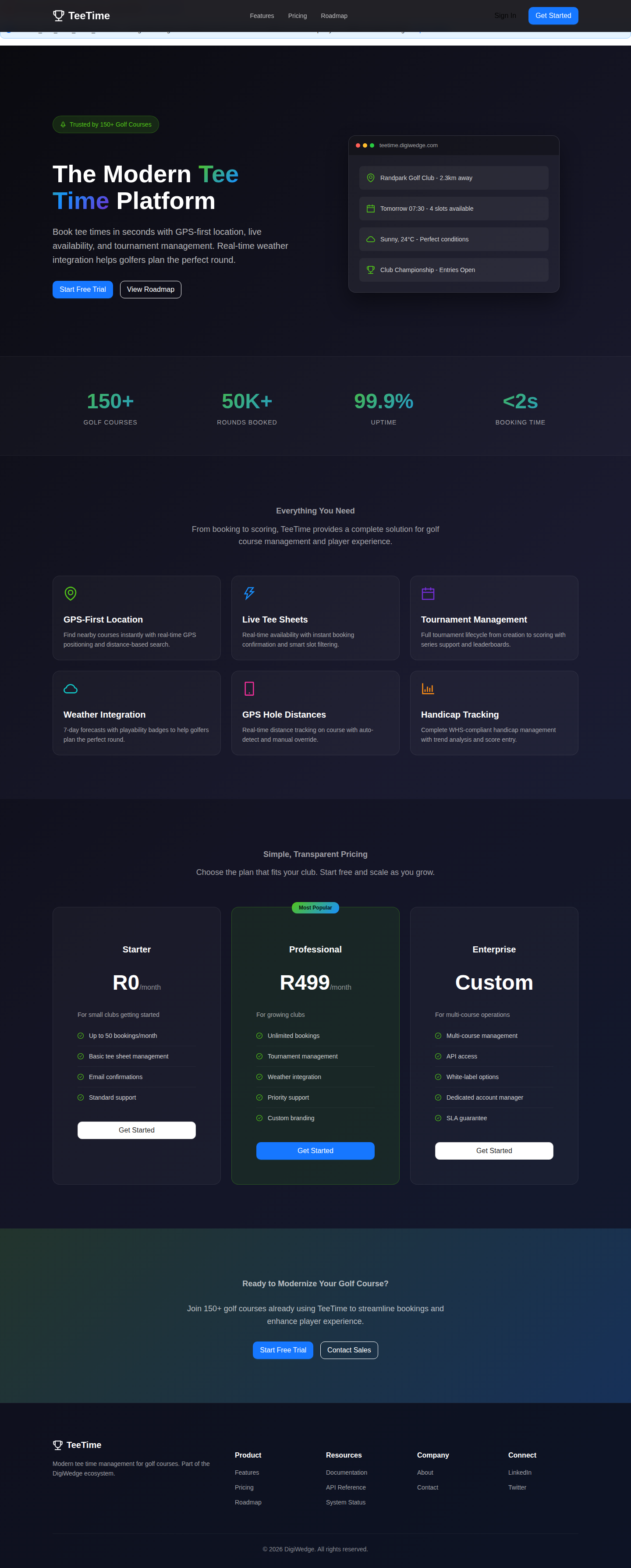
Expected outcome
- You can join the waitlist for fully-booked times.
- You receive notifications when a slot becomes available.
- You can accept or decline offers quickly.
Troubleshooting
- Offer expired? Offers have a time limit (typically 15 minutes). Check notifications promptly.
- Didn't get notification? Check app notification settings and spam folder.
- Can't join waitlist? The queue may be full. Try a different time.
Related
- Finding Tee Times — Search for available times
- Making Bookings — Complete a booking
- Booking Overview — Booking system overview