Cart Incidents
Track and resolve cart-related incidents raised during booking flow.
Last updated: 2026-01-26 Where to find it: Admin > Cart Incidents Who can use it: Admin, Pro Shop roles Prerequisites: Admin access Help link: /admin/cart-incidents
How to do it
Review Incidents
- Go to Cart Incidents in the admin portal.
- Filter by date, status, or course.
- Click on an incident to view details.
Add Resolution Notes
- Open the incident.
- Review the incident summary and timeline.
- Click Add Note.
- Enter resolution details.
- Update status (Resolved, Escalated, etc.).
What you'll see (fields/columns)
Incident List
| Column | Type | Description |
|---|---|---|
| ID | Text | Incident reference |
| Course | Text | Affected course |
| Type | Badge | Cart issue type |
| Date | Timestamp | When reported |
| Status | Badge | Open, Resolved, Escalated |
Screenshot / Callout
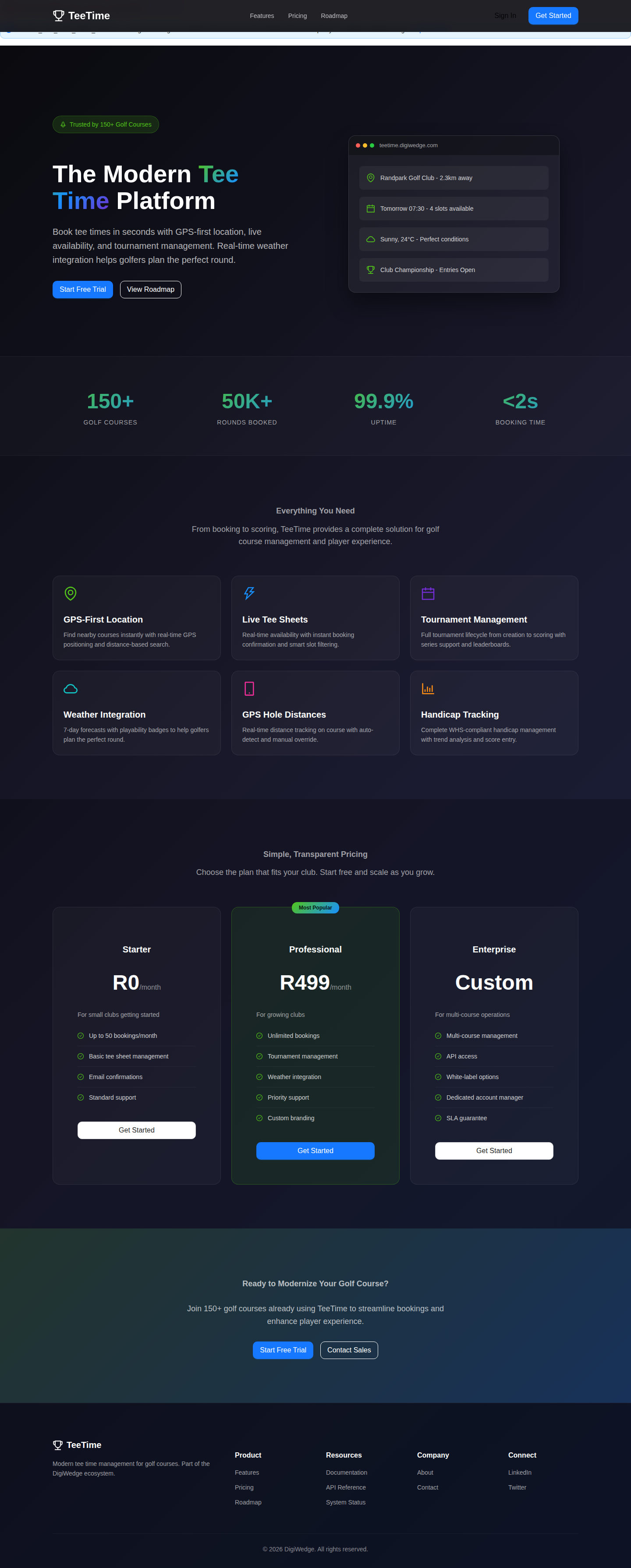
Expected outcome
- Cart incidents are tracked and resolved.
- Resolution notes provide audit trail.
- Patterns inform cart maintenance.
Troubleshooting
- Incidents missing? Verify logging configuration and filters.
- Can't add notes? Check admin permissions.
- Status not updating? Refresh and retry.
Related
- Tee Sheet Management — Cart inventory
- Reports — Incident reports